

The Best Monitor Setup for Solicitors
When you’re choosing technology for your law firm, it’s easy to spend most of your attention on the computer itself. Processor, RAM, storage, Windows 11 Pro and case management software all matter, but for a solicitor who spends most of their working day reading and creating documents, the monitor deserves just as much consideration.
A good monitor can make it easier to work with legal documents, compare information, manage email and case management software, and keep multiple applications visible without constantly switching between windows.
At Intellistart Solutions, we help law firms and legal professionals choose business technology based on how they actually work. We also have hands-on IT experience within law firms and help new practices get their technology set up from the beginning. That means we’re not looking at monitors simply as pieces of hardware. Rather, we’re considering how the screen fits into the solicitor’s complete workstation, including their laptop or PC, docking station, keyboard, mouse and other equipment.
In this guide, we’ll look at the best monitor sizes for solicitors, whether you should choose one or two screens, the benefits and drawbacks of ultra-wide monitors, what resolution you should buy, how to set up your workstation correctly, and the monitor features we think are genuinely worth considering for legal work.
Quick answer: For most solicitors working at a desk, we recommend a good-quality 24-inch or 27-inch business monitor. A 27-inch QHD or 4K monitor is particularly attractive for document-heavy work. For many firms, two matching 27-inch monitors provide an excellent combination of screen space and flexibility, while a high-quality ultrawide can be a good alternative for users who prefer one continuous workspace.
What is the best monitor size for a solicitor?
For most solicitors, 24 to 27 inches is the sweet spot.
The ideal size depends on the type of work being carried out, the desk available and whether the solicitor is using one, two or more screens.
Our general recommendations are:
| Monitor size | Best suited to | Our view |
|---|---|---|
| 22–24 inches | Smaller desks, straightforward office work | Good |
| 24 inches | General legal work and dual-monitor setups | Excellent |
| 27 inches | Document-heavy work and larger workspaces | Excellent |
| 32 inches | Users wanting one large screen | Useful in some setups |
| 34-inch+ ultrawide | Advanced multitasking | Good for specific users |
| 49-inch super ultrawide | Specialist/high-volume multitasking | Usually unnecessary for solicitors |
There isn’t a rule saying that bigger is always better.
A very large monitor can actually be less comfortable if the desk is too shallow or the screen is positioned incorrectly (too close or too far).
The important question is not simply: “How big a monitor can I afford?” It’s: “How much screen space do I actually need, and how will I use it?”
Why is having the correct monitor size important?
As a legal professional, you likely spend a substantial amount of time reading, drafting, reviewing and comparing documents.
That makes screen real estate particularly valuable.
A solicitor might need to have:
- A Word document open,
- A PDF bundle available for reference,
- Outlook visible,
- A case management system running,
- A web browser open for research, and
- Teams available for meetings.
Without sufficient screen space, the user is constantly minimising, maximising and switching between applications.
A larger display, or a second display, can massively reduce the amount of window juggling required.
This is particularly relevant to firms working towards paperless workflows. When documents that would previously have been spread across a physical desk are all being viewed digitally, the monitor becomes a much more important part of the workstation.
Is a 24-inch monitor big enough for a solicitor?
Yes. A good 24-inch monitor remains an excellent choice for many legal professionals.
In fact, 24-inch displays can be particularly useful when using two monitors side by side.
Two 24-inch screens provide considerably more usable workspace than a single screen while remaining relatively easy to accommodate on a normal office desk.
A 24-inch monitor can work well for:
- Solicitors with smaller desks,
- Home offices,
- General Microsoft 365 work,
- Email and document work,
- Dual-monitor setups, and
- Users who prefer higher pixel density at a smaller physical size.
If you’re buying two monitors, 24 inches can also be a sensible way of getting a substantial amount of screen space without making the desk feel dominated by displays.
Is a 27-inch monitor better?
For many users, it can be. A 27-inch monitor gives you noticeably more physical screen area than a 24-inch display, which can make documents and application windows more comfortable to work with.
It is particularly attractive when paired with a QHD resolution of 2560 × 1440 or 4K resolution of 3840 × 2160.
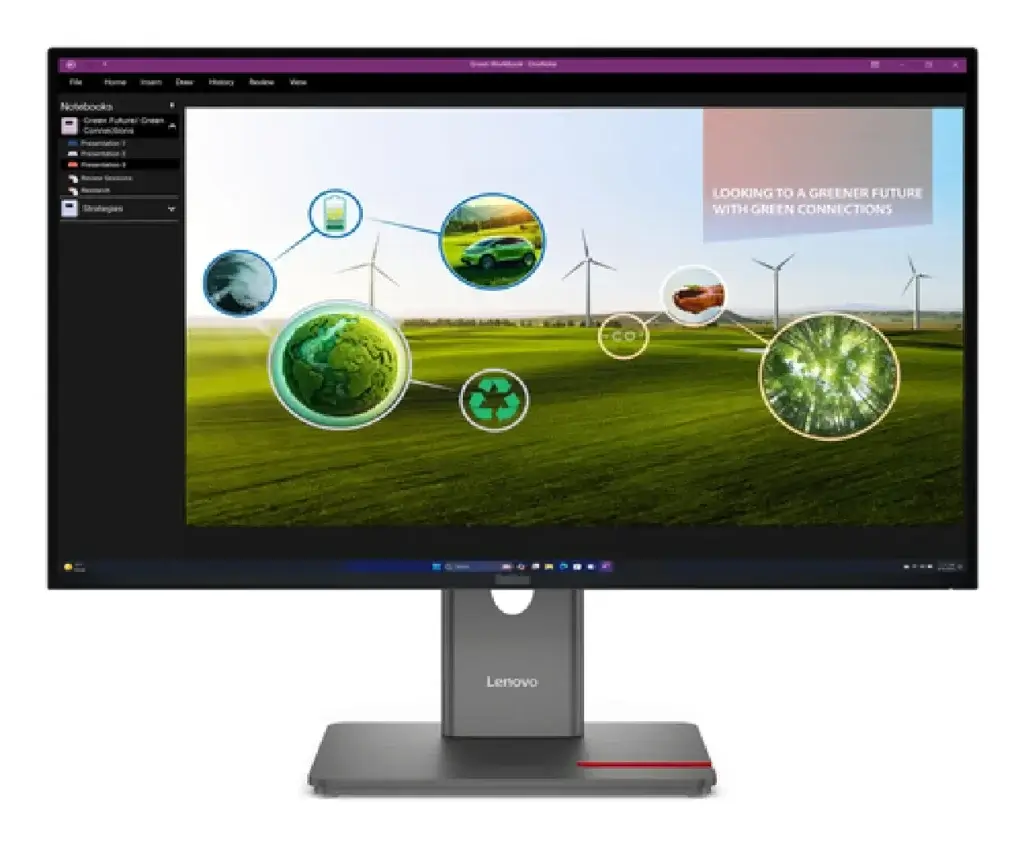

Modern business monitors such as Lenovo’s ThinkVision range are available in 27-inch QHD and 4K configurations, while Dell’s current Pro 27 Plus P2725QE is a 27-inch 4K IPS business monitor with height, swivel, tilt and pivot adjustment.
For a solicitor who spends most of the day at a desk, 27 inches is one of our preferred sizes.
Should I get one or two monitors?
This is where the answer becomes more interesting.
For many solicitors, two monitors make sense. But we don’t recommend automatically giving every employee two screens simply because “more screens must mean more productivity.”
The way the monitors are used matters. For example, a solicitor might use:
Monitor 1:
Drafting a legal document in Microsoft Word.
Monitor 2:
Reviewing a case file, PDF bundle or case management system.
That is a genuinely useful second screen.
Another solicitor might use:
Monitor 1:
Main legal application.
Monitor 2:
Outlook, Teams and research.
Again, there is a practical reason for the second screen.
The important point is that the additional screen should support the workflow rather than simply becoming another place for notifications and distractions.
Lawyerist made a similar distinction in its monitor guide, arguing that additional monitors are most useful when they allow lawyers to work with multiple documents rather than simply displaying email or other distractions.
The best dual-monitor setup for solicitors
For a typical law firm workstation, we’d generally consider:
Option 1: Two 24-inch monitors
A very practical solution for smaller desks and general office work.
Advantages:
- Relatively affordable
- Easy to position
- Plenty of screen space
- Good for document work
- Easy to replace individually
Option 2: Two 27-inch monitors
Our preferred setup for users who have sufficient desk space.
Advantages:
- Excellent screen real estate
- Comfortable for documents
- QHD or 4K options
- Excellent for side-by-side applications
- Suitable for long working days
Option 3: One 27-inch monitor + laptop
A good solution for users who don’t need two full-size displays.
The laptop can be used for Teams, Outlook or secondary applications while the main monitor handles the solicitor’s primary work.
Option 4: One ultra-wide monitor
A good alternative for people who prefer one continuous screen.
This can be particularly attractive if you regularly work with several windows side by side.
Ideally, yes. We recommend matching monitors where possible. Two identical screens mean:
- The same physical dimensions
- The same resolution
- Similar brightness
- Similar colours
- Similar viewing characteristics
- Consistent text appearance
This makes it easier for your eyes when moving between screens and it also makes the workstation look considerably cleaner.
Mixing a cheap 24-inch Full HD monitor with an expensive 27-inch 4K monitor can work, but it isn’t necessarily the best experience.
If your law firm is standardising its hardware, we would generally recommend choosing one or two approved monitor models rather than allowing every employee to buy something different.
If you’re trying to decide between the two, here’s our general view:
| 24-inch | 27-inch | |
|---|---|---|
| Desk space | Excellent | Good |
| Document work | Very good | Excellent |
| Dual setup | Excellent | Excellent |
| Resolution options | Full HD/QHD | QHD/4K |
| Portability between desks | Easier | Less convenient |
| Home office | Excellent | Very good |
| Large documents | Very good | Excellent |
| Our preference | Great all-rounder | Best for most desk users |
If your desk comfortably accommodates two 27-inch displays, that’s a setup we would seriously consider for document-heavy legal work.
An ultrawide can be an excellent option but it isn’t automatically better than two monitors.
A 34-inch ultrawide, for example, provides a large continuous workspace without the bezel between two screens. This can work well for:
- Document comparison
- Large spreadsheets
- Research
- Case management
- Multiple application windows
- Users who dislike monitor bezels
However, there are trade-offs. The advantages include:
- One continuous display
- No bezel in the middle
- Less cable clutter
- Can provide substantial horizontal workspace
- Often excellent for multitasking
The disadvantages, however, are that they:
- Can be expensive
- Takes up considerable desk space
- May be less flexible than two independent monitors
- Screen sharing can require more thought
- If the monitor fails, the entire display is unavailable
For a law firm, we would generally see ultrawides as a specialist option rather than the default setup.
An ultrawide can be an excellent option but it isn’t automatically better than two monitors.
A 34-inch ultrawide, for example, provides a large continuous workspace without the bezel between two screens. This can work well for:
- Document comparison
- Large spreadsheets
- Research
- Case management
- Multiple application windows
- Users who dislike monitor bezels
However, there are trade-offs. The advantages include:
- One continuous display
- No bezel in the middle
- Less cable clutter
- Can provide substantial horizontal workspace
- Often excellent for multitasking
The disadvantages, however, are that they:
- Can be expensive
- Takes up considerable desk space
- May be less flexible than two independent monitors
- Screen sharing can require more thought
- If the monitor fails, the entire display is unavailable
For a law firm, we would generally see ultrawides as a specialist option rather than the default setup.
A 32-inch monitor can be useful if you want a large single screen.
However, it’s getting into the territory where desk depth and viewing distance become increasingly important.
A 32-inch 4K monitor can be excellent for someone who wants a large amount of information on one display but if you’re considering two 32-inch screens, make sure you have a genuinely large desk.
For most solicitors, we’d rather see two well-positioned 27-inch displays than an unnecessarily enormous screen.
What resolution should my monitor have?
Resolution is important because it determines how much detail the display can show.
The most common options you’ll encounter are:
Full HD – 1920 × 1080
Full HD remains perfectly usable for everyday office work.
It is particularly common on 22- and 24-inch monitors.
For a budget-conscious setup, it can be perfectly adequate.
QHD – 2560 × 1440
QHD is an excellent middle ground.
It provides considerably more pixels than Full HD without the additional demands and cost associated with some 4K setups.
A 27-inch QHD business monitor is an excellent option for general professional work.
4K – 3840 × 2160
4K provides significantly greater pixel density and sharper text and graphics.
For users who spend all day reading documents, the additional clarity can be appealing.
However, 4K isn’t automatically better in every situation.
You also need to consider Windows scaling, the size of text and icons, the capabilities of the laptop and how the display will actually be used.
For many law firms, a good 27-inch QHD monitor is already an excellent solution.
It can be, but we wouldn’t tell every solicitor that they need a 4K monitor.
If you’re buying one premium monitor for a partner or senior fee earner, 4K can be an attractive option.
For example, Dell’s current Pro 27 Plus P2725QE combines a 27-inch 4K IPS panel with USB-C connectivity, up to 90W USB-C power delivery, Ethernet and USB ports, allowing the monitor to function as a docking point for a compatible laptop.
That kind of functionality can be more valuable to a solicitor than 4K resolution alone.
In other words: Don’t buy 4K simply because it says 4K. Look at the entire monitor.
Why pixel density matters for legal documents?
Screen size and resolution need to be considered together.
A large monitor with a relatively low resolution can have a lower pixel density than a smaller monitor with the same resolution, resulting in less crisp text.
That’s why we’d generally avoid choosing a 27-inch monitor purely because it is larger if it has an unnecessarily low resolution.
For document-heavy work, a good-quality 27-inch QHD or 4K monitor is generally a more compelling proposition.
Can I use a laptop with two monitors?
Yes and this is one of the setups we recommend considering for modern law firms.
A business laptop can become the portable computer while a docking station provides the connection to the desk setup.
A typical arrangement might be:
Laptop → USB-C dock → two monitors + keyboard + mouse + Ethernet
This allows you to unplug one cable and take the laptop with you.
When you return, you simply reconnect the laptop and immediately have your full desktop environment. This is particularly useful for:
- Hybrid workers,
- Partners,
- Solicitors who work from home,
- People who attend court,
- Firms with hot-desking, and
- New law firms wanting flexible workstations.
The laptop and monitors should be selected together, however.
You need to check that the laptop, dock and monitors support the required number of displays and resolutions.
USB-C monitors and docking stations
Modern business monitors can do much more than display an image.
Some include USB-C connectivity that can carry:
- Video,
- Data,
- Audio,
- Network connectivity, and
- Power.
For example, Lenovo’s ThinkVision T27h-30 includes USB-C docking, Ethernet, USB connectivity and a QHD 27-inch display. This can significantly simplify a solicitor’s desk.
Instead of having a separate docking station, the monitor can provide some of the required functionality.
However, monitor-based docking isn’t always the best solution for every firm. A separate business-class dock can provide more flexibility where users have multiple peripherals or more complex setups.
Three monitor setups we’d recommend for solicitors
Best all-round setup: Two 27-inch monitors
Best for: Most full-time office-based solicitors.
Two 27-inch QHD or 4K business monitors provide a large amount of screen space while retaining the flexibility of separate displays.
This is probably the configuration we’d recommend most often for a document-heavy workstation.
Best compact setup: One 27-inch monitor + laptop
Best for: Hybrid workers and smaller desks.
The laptop provides a second screen while the 27-inch monitor acts as the primary display.
This is an excellent compromise between flexibility and desk space.
Best premium setup: One 34-inch ultrawide
Best for: Users who prefer one continuous workspace.
A premium ultrawide can provide a substantial amount of screen real estate while eliminating the bezel between two monitors.
It is particularly attractive for users who regularly arrange several applications side by side.
Monitor recommendations for law firms
Monitor ranges change regularly, so we recommend checking current availability and configurations before making a purchasing decision.
Some business models we’d consider investigating include:
Dell Pro 27 Plus 4K USB-C Hub Monitor P2725QE
A particularly interesting option for a professional laptop workstation.
It provides a 27-inch 4K IPS display, height/pivot/swivel/tilt adjustment, USB-C connectivity with up to 90W power delivery, Ethernet and a USB hub.
That means a compatible laptop can potentially connect to the monitor with a single USB-C cable while gaining access to the display, peripherals, network and power.
Lenovo ThinkVision T27h-30
A 27-inch QHD business monitor with USB-C docking, Ethernet and USB hub functionality.
It offers 2560 × 1440 resolution and an ergonomic design, making it an interesting option for general professional work.
Lenovo ThinkVision T27p-30
For firms wanting 4K, the ThinkVision T27p-30 provides a 27-inch UHD IPS display with USB-C, HDMI, DisplayPort, Ethernet and USB connectivity.
Dell UltraSharp U2725QE
For a premium setup, Dell’s UltraSharp U2725QE provides a 27-inch 4K display, 120Hz refresh rate, IPS Black technology, Thunderbolt connectivity and extensive hub functionality.
We wouldn’t recommend paying for these premium features simply because they’re available, but they can make sense for a partner or senior user who spends most of their working day at their desk.
Important: We don’t publish fixed monitor prices because stock, manufacturer promotions and business pricing change regularly. If you are interested in a particular model, contact us and we can check current availability and pricing.
Need help choosing monitors for your law firm?
At Intellistart Solutions, we help law firms choose business technology based on their actual requirements, not simply the latest specifications. We can help you put together a complete workstation, including:
- Business laptops,
- Desktop PCs,
- Monitors,
- Accessories, and
- Printers and scanners.
We can also help new law firms plan their technology from the outset, so laptops, monitors, docks and other equipment work together rather than being purchased separately.
We don’t publish fixed monitor prices because availability and manufacturer pricing change regularly. If you have a particular model in mind, or you’re not sure which setup is right for your firm, contact us and we’ll check the latest options and provide an up-to-date quotation.
Good technology should make legal work easier, not get in the way of it.
Please provide some details below and we will get back to you with up-to-date prices and stock availability:
FAQs
Yes, provided the laptop and docking solution support the required number of displays and resolutions.
We generally recommend it. Matching monitors provide a more consistent viewing experience and make the workstation easier to standardise and support.
If you’re using a modern business laptop, USB-C can be extremely useful. Some monitors can provide video, data, peripherals, Ethernet and laptop charging through a single connection.
For most home workers, we’d consider a laptop plus one 27-inch monitor an excellent starting point. If desk space allows and the user works heavily with documents, two 27-inch monitors can be even better.
The HSE recommends a standard workstation arrangement with the screen approximately an arm’s length away and the top of the screen around eye level.
There isn’t one universal answer. Business monitors from manufacturers such as Dell and Lenovo provide a range of suitable options. The correct model depends on desk space, whether one or two monitors are required, resolution, connectivity and budget.
Legal Marketing That Respects Your Time, Budget, and Reputation
Specialist website design, SEO, GEO and PPC for law practices in England & Wales.
We help law firms generate enquiries and grow sustainably using search-led marketing strategies built in-house by people who understand the legal sector.
- No outsourced freelancers.
- No long-term contracts.
- No generic marketing.